Your claims, leave, overtime, and everyday self-service.
UtopiaSystem Interface
¶ Launcher UI
Launcher UI is the main entry screen users see after signing in to UtopiaSystem.
It acts as the central place where users choose which app, space, or tool they want to open.
¶ Purpose
The purpose of the Launcher UI is to provide a simple starting point for users.
From the launcher, users can:
- View available spaces.
- View available tools.
- Open apps they have access to.
- See which apps are coming soon.
- See which apps are restricted.
- Sign out from the system.
- Switch theme mode when available.
¶ Launcher Layout
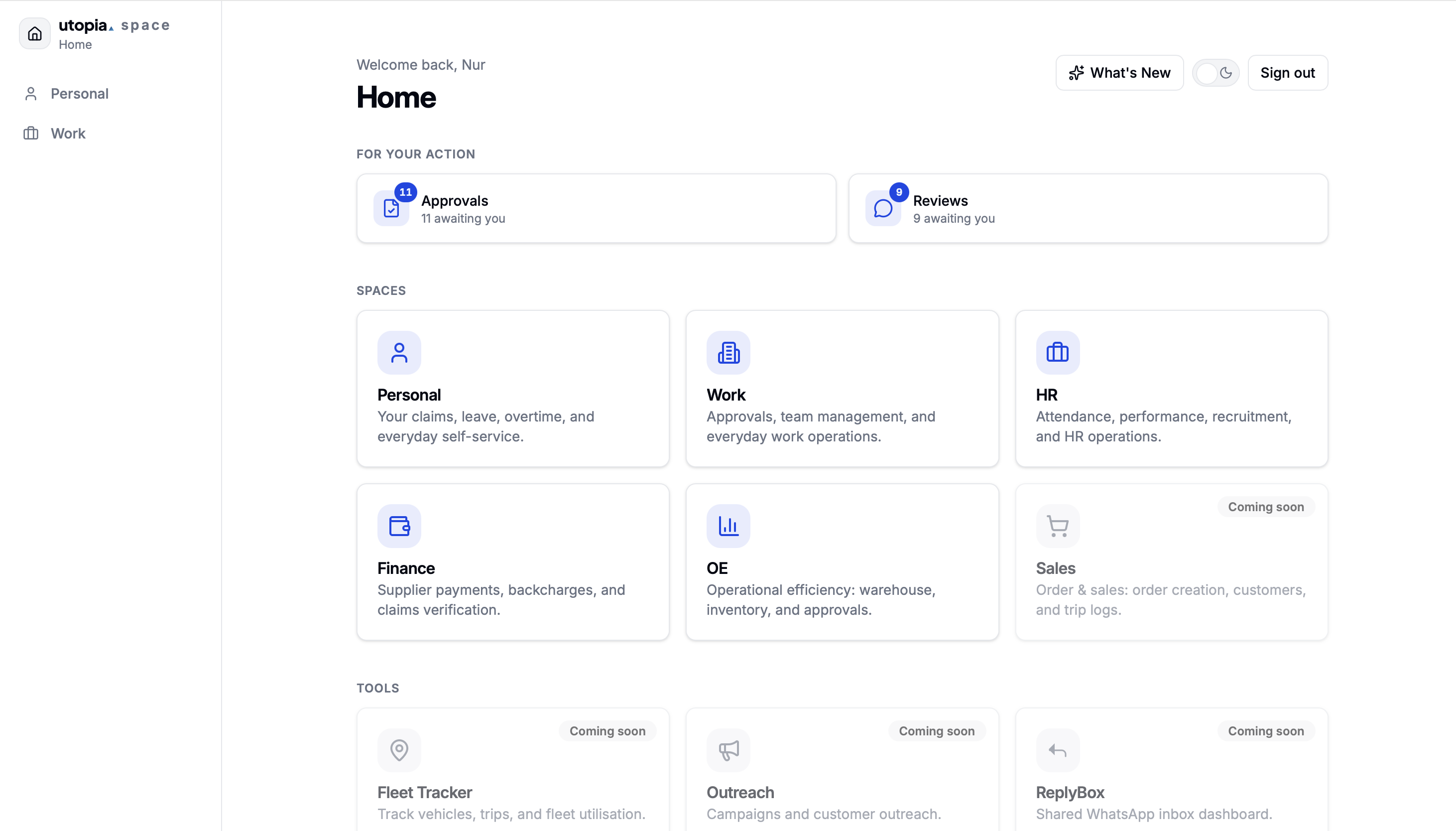
The Launcher UI is structured as a clean dashboard-style page.
The main areas are:
Launcher UI
|-- Sidebar
|-- Header
|-- Spaces Section
|-- Tools Section
|-- Theme Toggle
`-- Sign Out Button
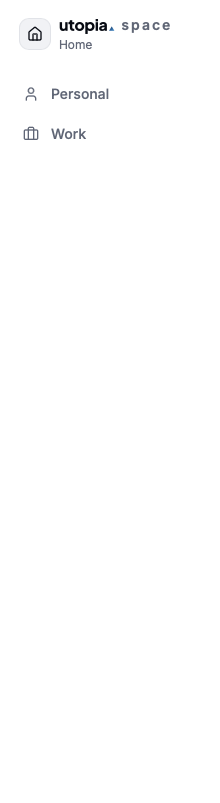
¶ Sidebar
¶ Header

The header area greets the signed-in user and shows the current page title.
Example
Welcome back, nur
Home
The greeting confirms that the user is signed in.
The page title tells the user they are currently on the Home / launcher screen.
¶ Spaces Section
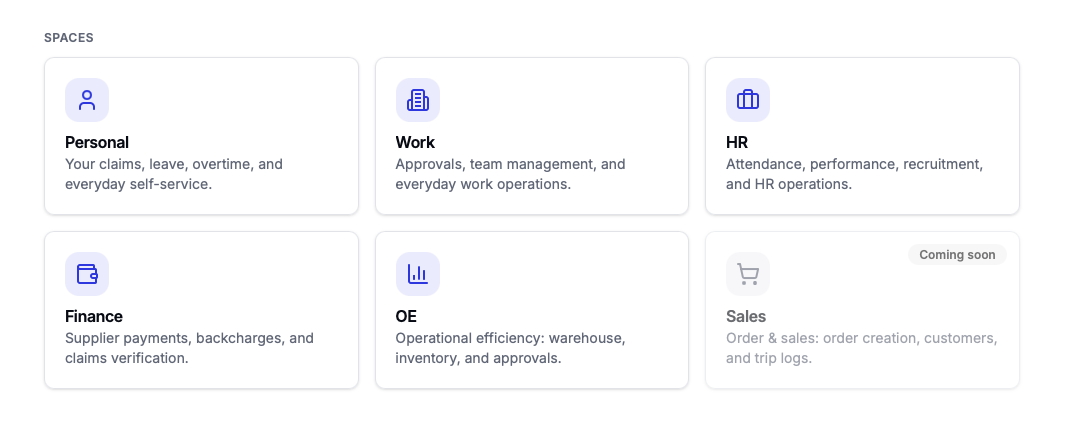
The Spaces section displays the main business applications or work areas available in UtopiaSystem.
Examples of spaces include:
- Personal
- Work
- HR
- Finance
- OE
- Sales
Each space is displayed as a card.
A space card usually contains:
- Icon.
- Space name.
- Short description.
- Status badge when needed.
Approvals, team management, and everyday work operations.
¶ Tools Section
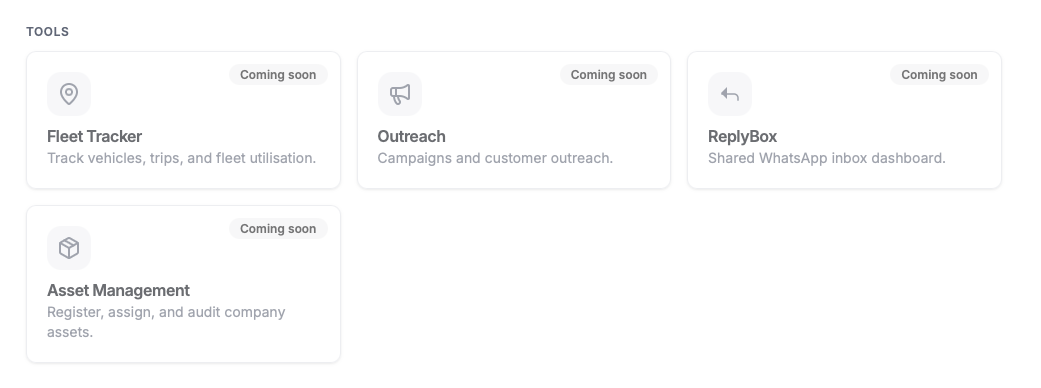
The Tools section displays supporting tools that are separate from the main spaces.
Examples of tools include:
- Fleet Tracker
- Outreach
- Replybox
- Asset Management
These tools may be available now or marked as coming soon depending on system status.
¶ Card Status
¶ Available
An available card can be opened by the user.
PersonalIf the user has access, clicking the card opens the selected space or app.
¶ No Access
A No Access card means the user does not currently have permission to open that space.
HR / No accessThis helps users understand that the app exists, but their account is not allowed to access it.
¶ Coming Soon
A Coming Soon card means the feature or tool is planned but not currently usable.
Sales / Coming soonThis tells users that the item is not yet available for normal use.
¶ Access-Based Display
The launcher is access-aware.
This means the cards shown or enabled can depend on the user’s permissions.
For example:
- Users with Personal access can open Personal.
- Users with Work access can open Work.
- Users with HR access can open HR.
- Users with Finance access can open Finance.
- Users without access may see a restricted state.
- Items not ready for use may show Coming soon.
Access is controlled by the system’s access-control rules, not only by the visual card state.
¶ Theme Toggle
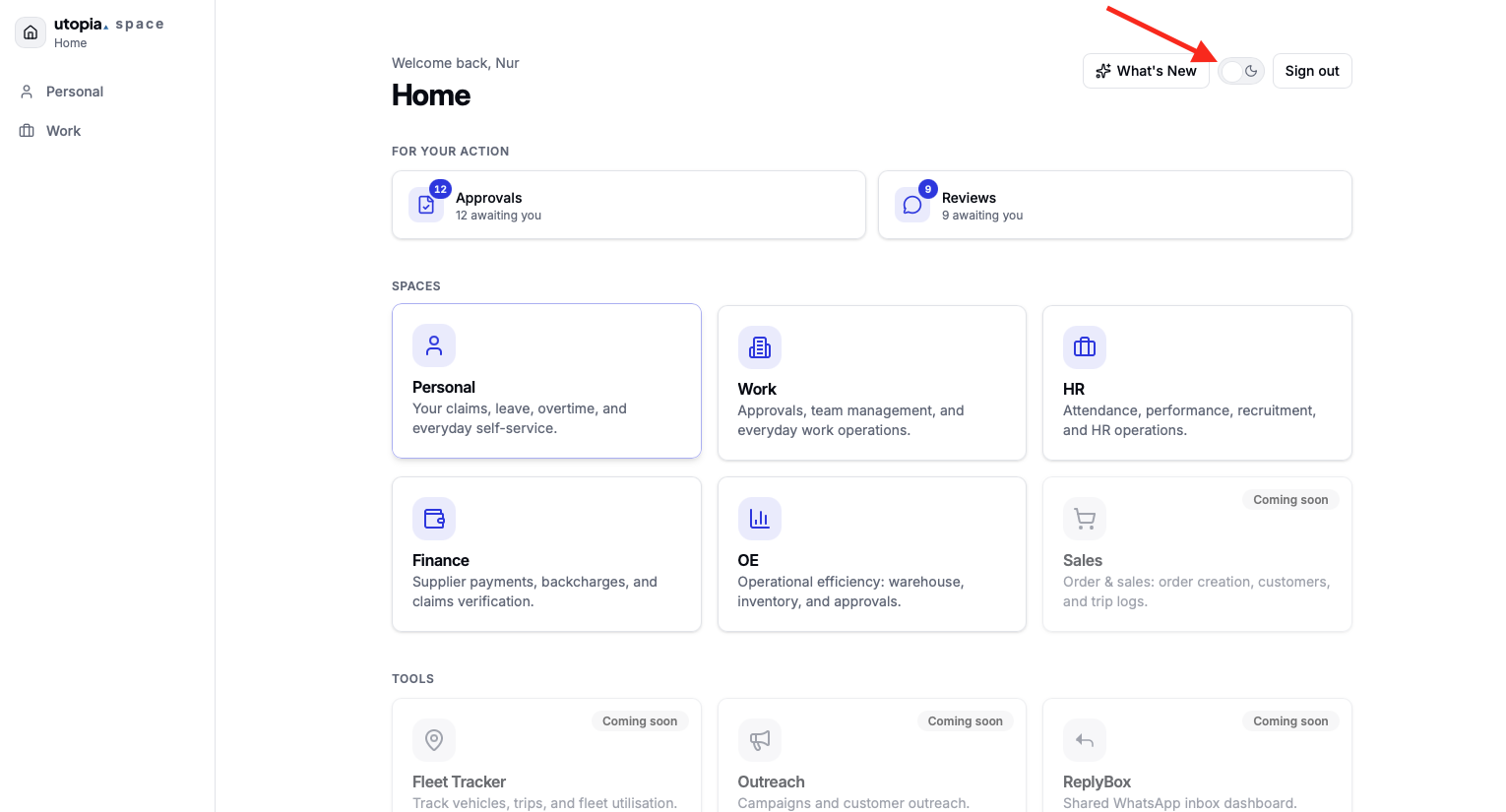
The launcher includes a theme toggle near the top-right area.
This allows the user to switch between supported visual modes, such as light mode and dark mode.
The selected theme affects the interface appearance but does not affect access or functionality.
¶ Sign Out Button
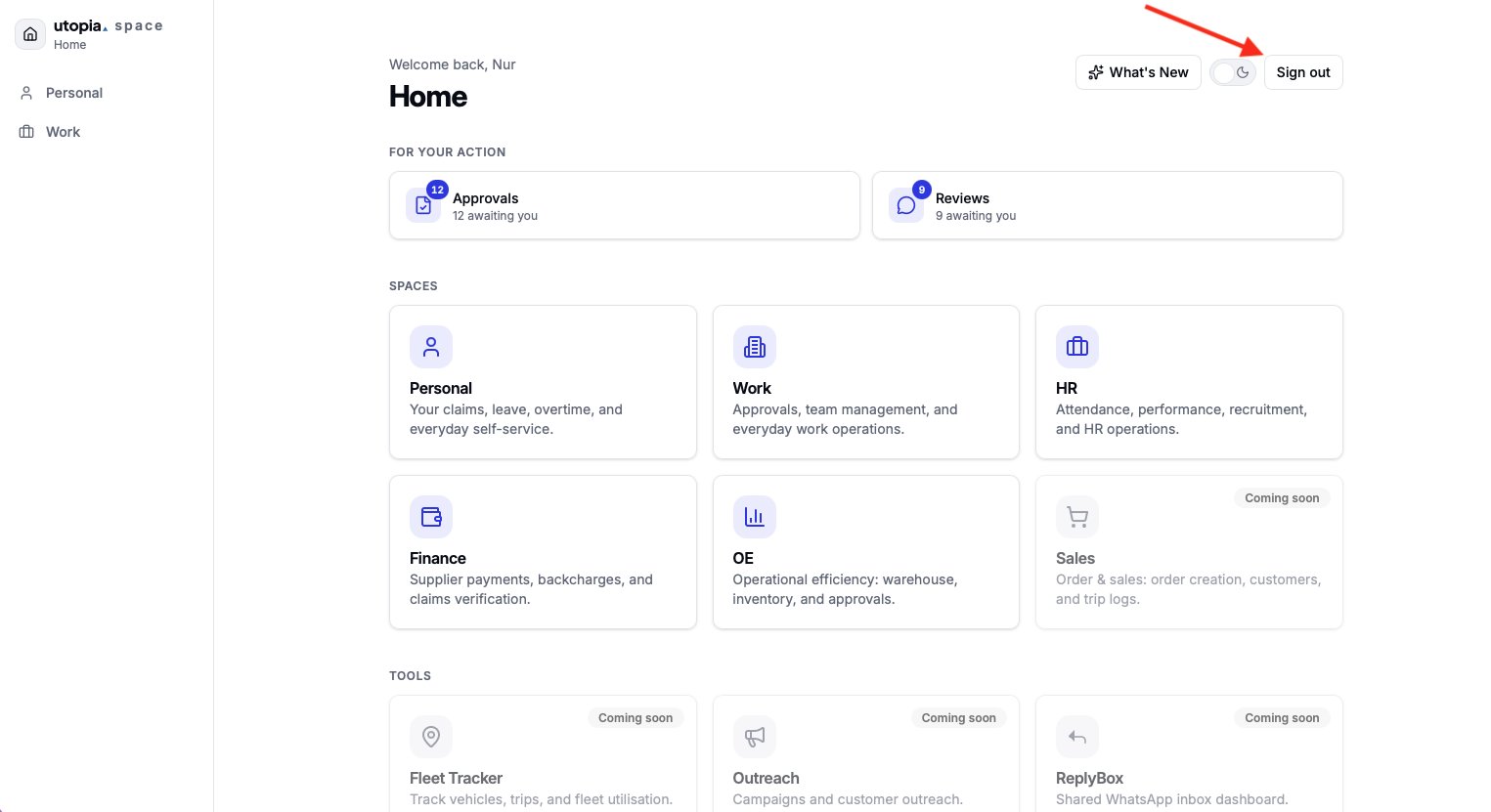
The Sign Out button appears near the top-right area of the launcher.
When selected, it signs the user out of UtopiaSystem and ends the current session.
Example
Sign out
¶ User Flow
The normal launcher flow is:
- User signs in
- Launcher Home opens
- User views available spaces and tools
- User selects an available card
- System opens the selected app or space
If the user selects an unavailable or restricted item, the system should prevent access.
¶ Example Launcher Structure
Home
|-- Spaces
| |-- Personal
| |-- Work
| |-- HR
| |-- Finance
| |-- OE
| `-- Sales
`-- Tools
|-- Fleet Tracker
|-- Outreach
|-- Replybox
`-- Asset Management
¶ Important Notes
- The launcher is the entry point into UtopiaSystem after login.
- Cards should clearly communicate whether an app is available, restricted, or coming soon.
- The launcher does not replace access control. Even if a card is visible, routes and backend policies still enforce access.
- The launcher should remain simple because its main purpose is navigation.
Launcher UI is the home screen for choosing apps, spaces, and tools in UtopiaSystem. It displays spaces and tools as cards, uses access-based states, and provides quick controls such as theme switching and sign out.